
Our current Push Notifications are built using OneSignal.
Head over to app.onesignal.com/login and login to the dashboard.
You will see an overview of all our current websites/apps:
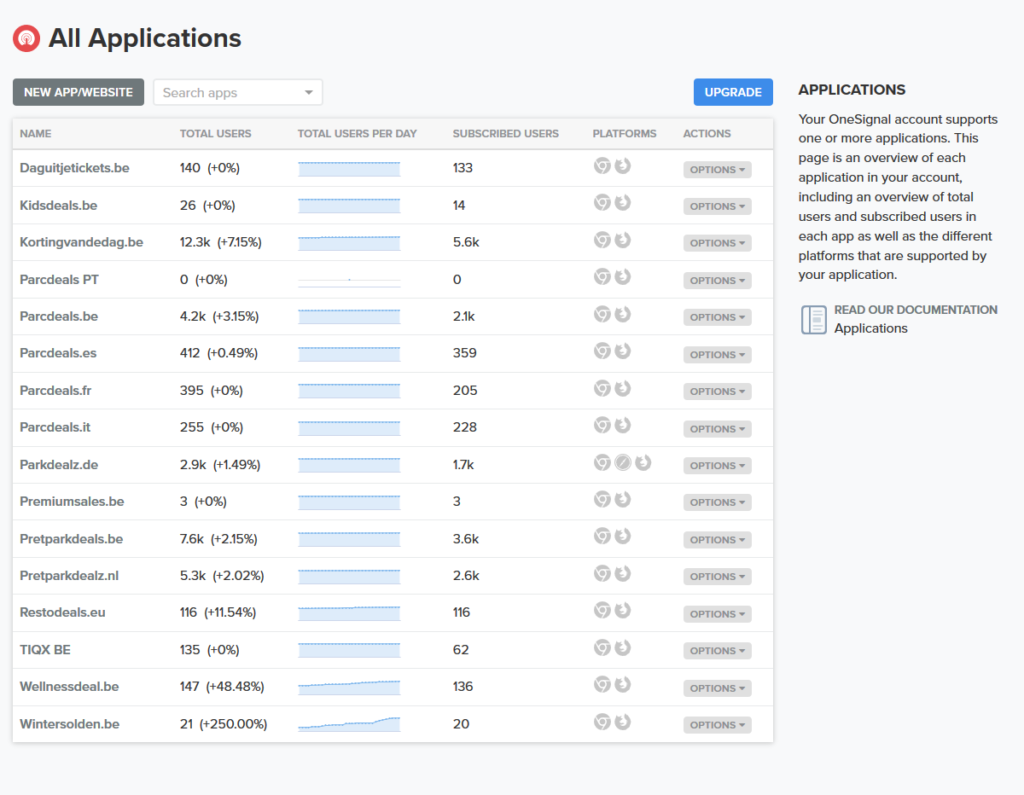
Choose the right website/app and continue.
Next, you arrive at the dashboard for this website. Click on ‘Messages’ in the menu:

In the Messages overview, you have two options:
- Create a new push, without any template
- Go to ‘Templates’ and use a template (for example for Exclusive codes)
(1) Create a new push message
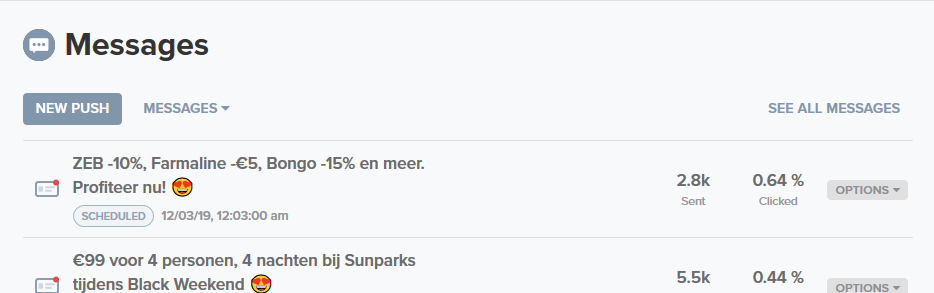
Click ‘New Push’.
1 – Audience
Always send to subscribed users, no need to choose a segment
2- Create the message
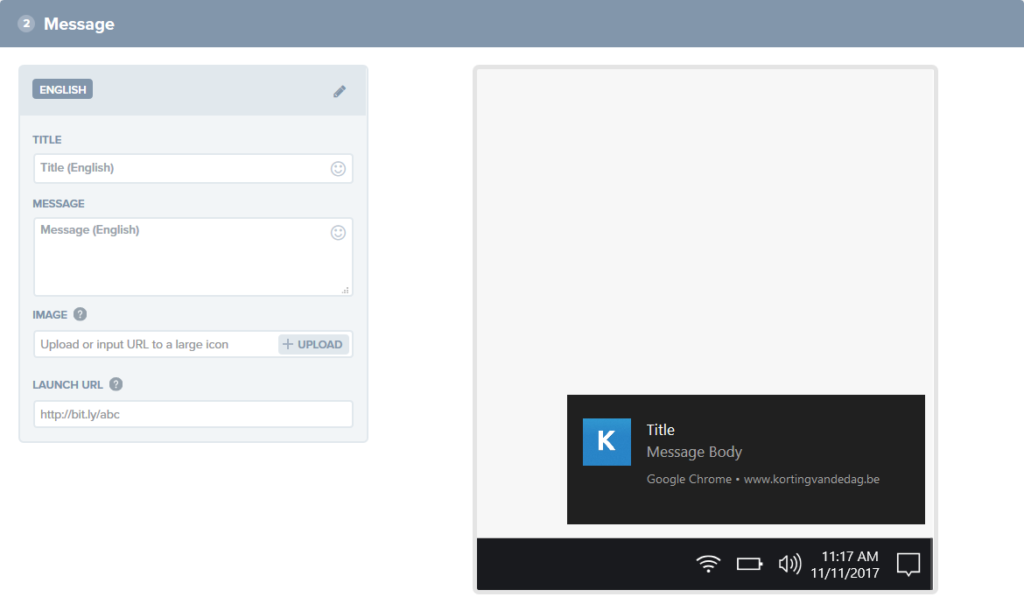
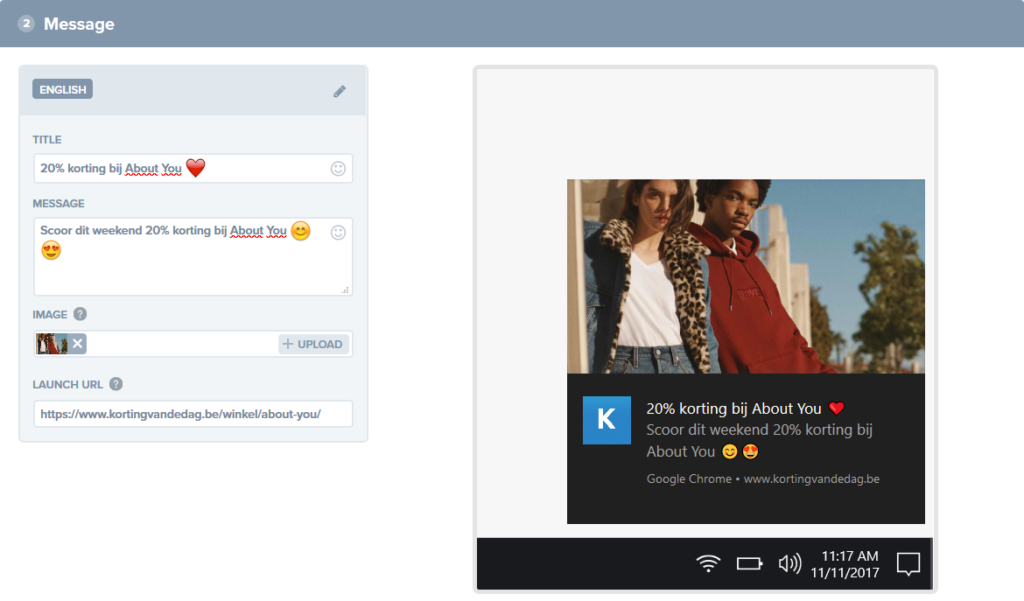
Make sure you always fill in the title, message, launch URL and add an image. This is an example of a push ready to launch:
You can forget about advanced and platform settings. No need to do anything there.
3 – Schedule
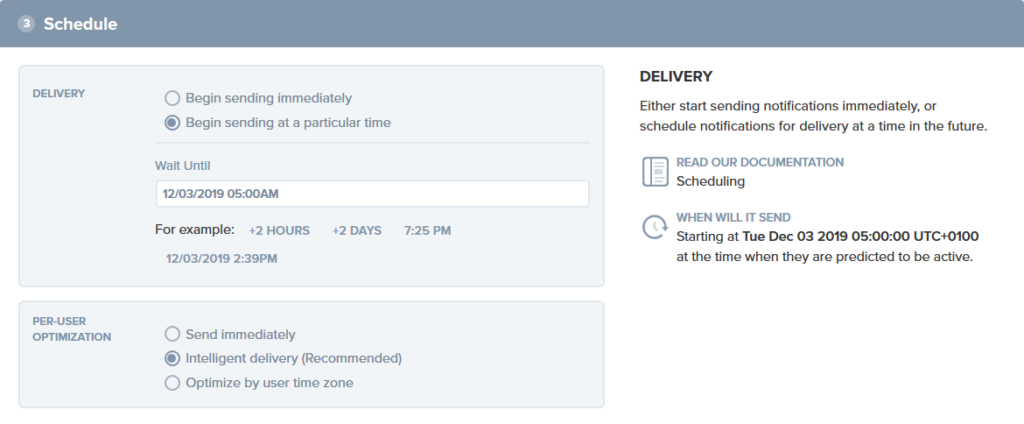
Choose ‘Begin sending at a particular time’ and input the correct start time.
Choose ‘Intelligent delivery’ (this makes sure users receive the push when they are online)
Do a last check up.
Hit ‘Confirm’, check again.
Send it out! Good job.
Leave A Comment?